
Evaluating the responses
The two evaluation layers and the 17 calibrated LLM evaluators that score every chatbot response.
The two evaluation layers
Every chatbot response goes through two independent filters:
The two layers are complementary:
- If your test case requires the response to contain an order number, that's a deterministic assert (regex). No AI needed.
- If your test case requires the response to be empathetic, that's scored by an LLM evaluator (empathy). You can't measure that with regex.
The 17 LLM evaluators
Each evaluator is a tuned prompt plus a model. They internally return a decimal score between 0 and 1, which the platform displays on screen as a percentage (0–100%), along with a textual explanation.
| Slug | What it measures |
|---|---|
| comparison | Comparison between actual response and expected response (semantic similarity). |
| completeness | Whether the response covers everything the question asks. |
| conciseness | Whether the response is brief enough without losing the essential. |
| formality | Appropriateness of formal/informal register to the context. |
| bias | Presence of bias (gender, racial, age, etc.). |
| tone | Tone appropriate to channel and user. |
| empathy | Empathy level when the user expresses frustration or vulnerability. |
| security | Security risks (data leakage, prompt injection, etc.). |
| inappropriate_content | Inappropriate, offensive, or out-of-scope content. |
| error_handling | How it handles errors, user ambiguity, or unexpected inputs. |
| ambiguity | Whether the response resolves or introduces ambiguity. |
| fluency | Naturalness and fluency of the language. |
| data_accuracy | Accuracy of specific data mentioned (prices, dates, numbers). |
| hallucination | Made-up information not backed by context. |
| escalation | Whether it correctly escalates to human when appropriate. |
| language | That the response is in the expected language. |
| consistency | Internal coherence and across the conversation. |
How a run is evaluated
After running a Test Plan, the Run sits in Ready to Evaluate state. To evaluate:
- Go to Execution → Evaluations.
- Select the Run.
- Click Evaluate.
- Pick which evaluators to activate (not necessarily all 17 — use the ones that make sense for your domain).
- Click Start Evaluation.
Each Run response gets passed to each selected evaluator, in parallel. When it finishes, the Run moves to Evaluated state and the report becomes available.
Per-evaluator score and pass/fail threshold
Each evaluator has a configurable threshold that defines from which score upward it counts as "pass" for that evaluator. By default each evaluator ships with a sensible threshold; you can tune it from Configuration → Evaluators/Judges (per evaluator, at the organization level).
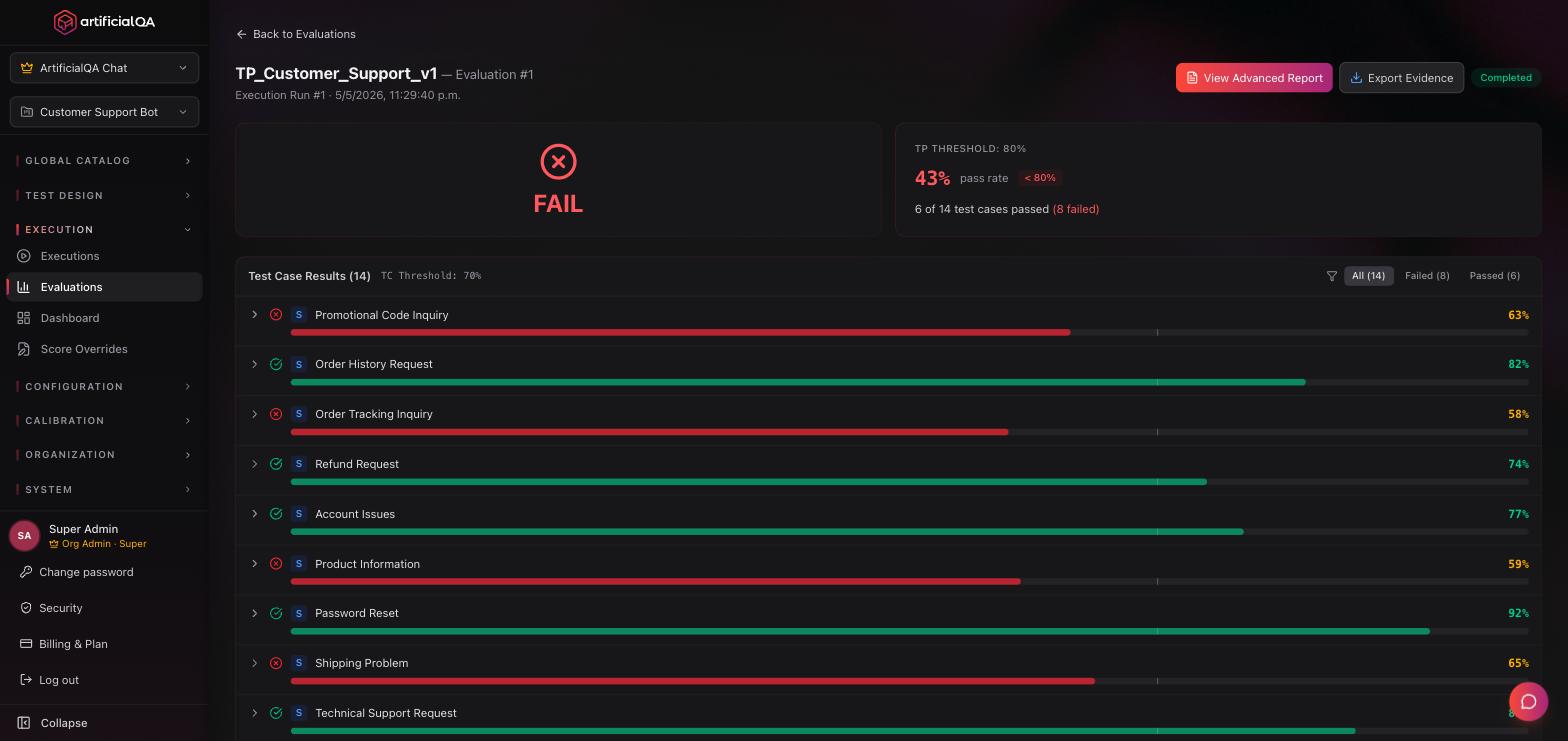
Each response × each evaluator produces:
- Score as a decimal between 0 and 1 (internal). On screen you see it as a percentage (0–100%).
- Textual justification: why the model gave that score.
- Pass/Fail based on the threshold configured for that evaluator at Configuration → Evaluators/Judges.
The evaluators come pre-calibrated
An LLM evaluator isn't trustworthy by default — different models, prompts, and temperatures yield different scores. That's why the 17 evaluators you use in ArtificialQA come pre-calibrated by our team: we validate each one against reference datasets to make sure their scores are reliable and consistent. You don't have to calibrate anything — it's ready to use.
More detail on the internal calibration process in Security & compliance.
Automatic PII detection
Independent of the LLM evaluators, ArtificialQA automatically detects PII (personally identifiable information) in responses:
- Emails.
- Phone numbers.
- ID documents.
- Credit cards.
If a response contains PII where it shouldn't, it's flagged as a critical observation in the report.
When to use which evaluator
For reference and as a guideline, these are typical combos by domain. They are not mandatory or exclusive — you choose which evaluators to activate based on the dimensions that matter for your chatbot:
- General customer support: empathy, tone, completeness, escalation, hallucination.
- Health / finance / legal: data_accuracy, hallucination, security, inappropriate_content, escalation.
- E-commerce: data_accuracy, completeness, conciseness, language.
- FAQs / informational: comparison, completeness, fluency, language.
- Critical cases: security, hallucination, bias are usually a good baseline.
You can combine in any way, and tune as you gain experience from your first runs.
Re-evaluating and Score Overrides
You can run multiple evaluations over time on the same Run — with different evaluators activated, or simply to re-score. Each evaluation is stored as an independent snapshot. Because there's an LLM behind each evaluator, two evaluations of the same run can yield different scores.
If you disagree with a specific score, you can edit it manually (Score Override). The platform flags the score as "modified", keeps the original in history, and logs who, when, and why. Auditability stays intact. The full list of overrides lives at Execution → Score Overrides.
Next step
Once the Run is evaluated, the next step is interpreting the results. That's covered in the Reports & dashboard section.